Hello, I needed to have custom module that included email functionality (eg using a workflow to send an email on creation) so used the ‘person’ module type as the email functionality was included within this.
I found I was then able to generate an email successfully from a workflow.
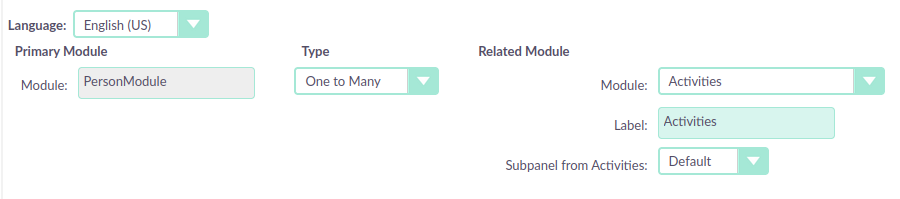
I also need to be able to send an email related to that module. I therefore added a many to many relationship between Emails and my custom module. I am finding this does not work.
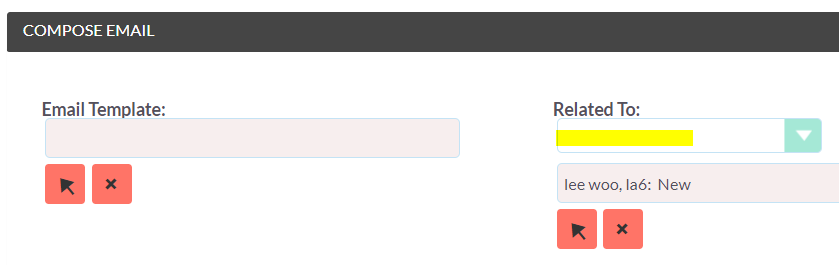
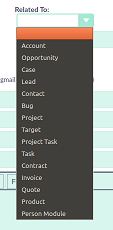
When I click on the email address , the Compose Email dialog is displayed however my new custom module is not displayed in the Related To box, neither is it available to select as an option within this box. (My record name is though displayed in the box below this.) When I send the email it does not appear in the Email sub-panel (unlike the email that was generated via the workflow.) Is there something else I need to do or something instead to be able to send emails related to my new custom module.
I believe you can add Custom Modules to the “Related to” dropdown via the Dropdown Editor in Admin
So if you go to Admin->Dropdown Editor
Select the “record_type_display” Dropdown
Add a new item, with:
“Item Name” being the Module Name for the Module. (ie, xxxx_moduleName)
“Display Label” The text you would like to display in the Dropdown
So, for example, I have a custom module named “Person Module”
I can grab the Module name from the URL when viewing a record in the Module
I then add this to the “record_type_display” dropdown: